
Table of Contents
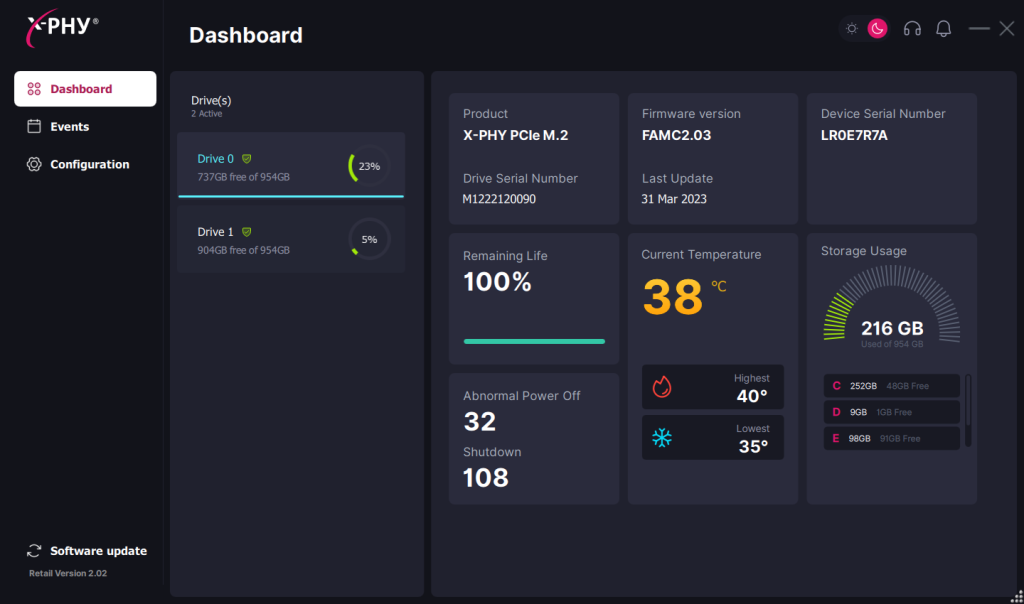
- Step 1: From the Dashboard select “Drive 1” to access the secondary X-PHY SSD.
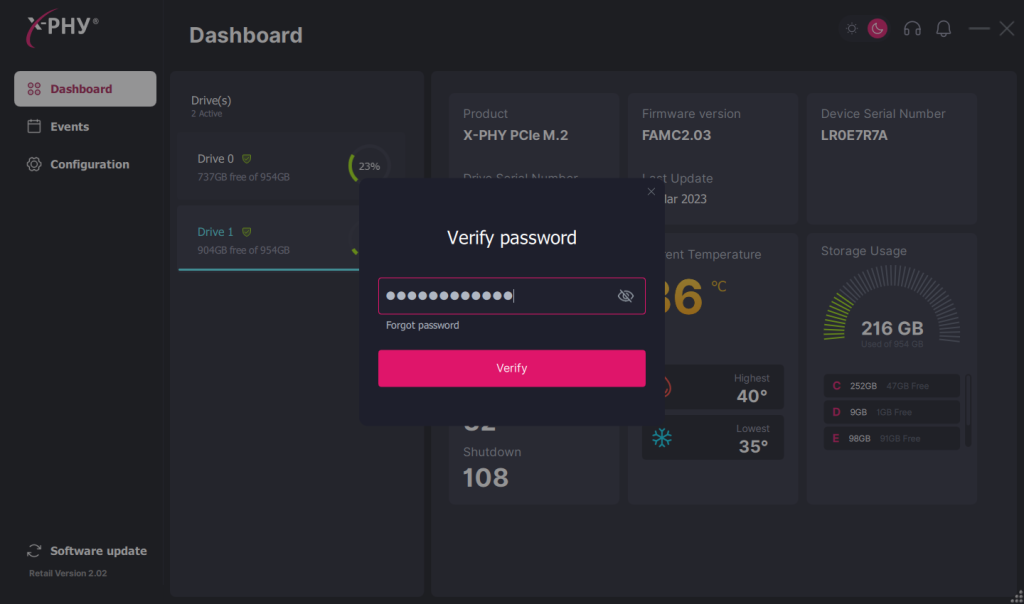
- Step 2: Key in your registered password for Drive 0 in order to access Drive 1.
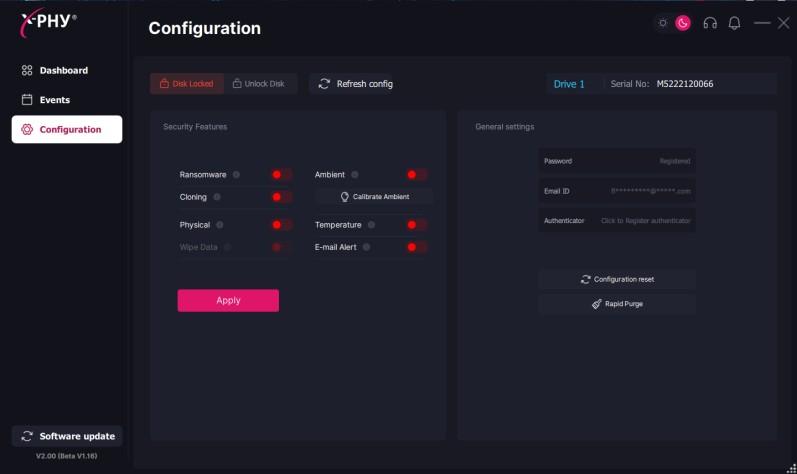
- Step 3: Click on the “Configuration” tab, the locked status will be shown “Disk Locked” in the configuration page of the application. Click “Unlock Disk” button to unlock the SSD.
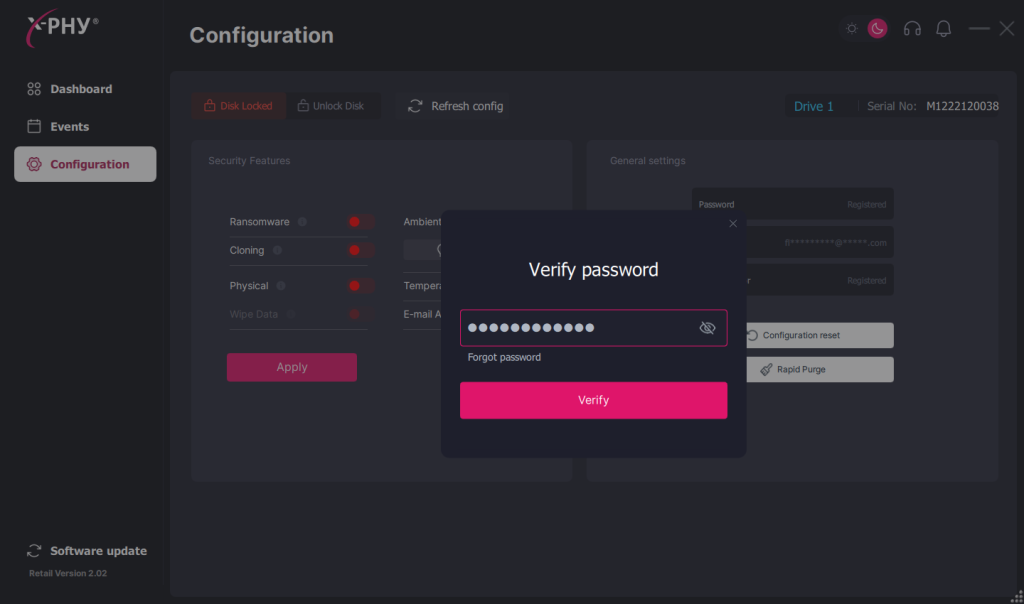
- Step 4: The application will prompt for the password and the Authenticator OTP.
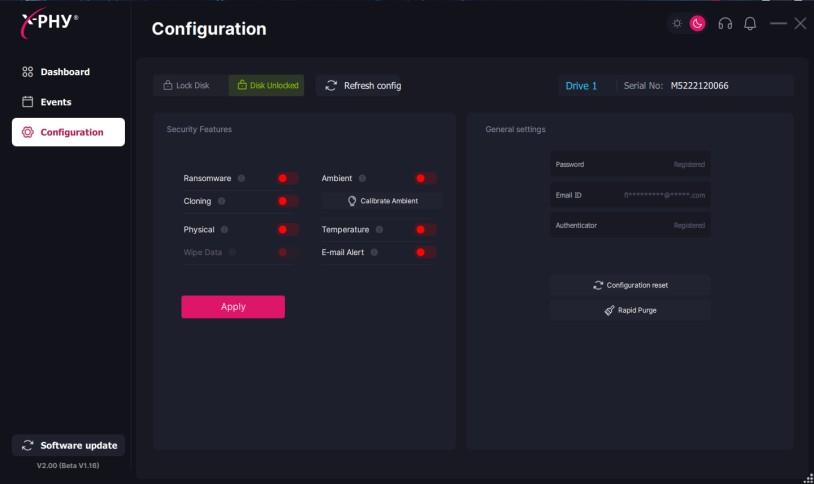
- Step 5: Once authentication is verified, the SSD will be unlocked.
If the SSD is locked due to attacks by ransomware, data cloning theft, temperature or physical disconnections, the SSD can be unlocked by connecting it as a secondary drive and running the X-PHY PC Application.
Step 1: From the Dashboard select “Drive 1” to access the secondary X-PHY SSD. #
Step 2: Key in your registered password for Drive 0 in order to access Drive 1. #
Step 3: Click on the “Configuration” tab, the locked status will be shown “Disk Locked” in the configuration page of the application. Click “Unlock Disk” button to unlock the SSD. #
Step 4: The application will prompt for the password and the Authenticator OTP. #
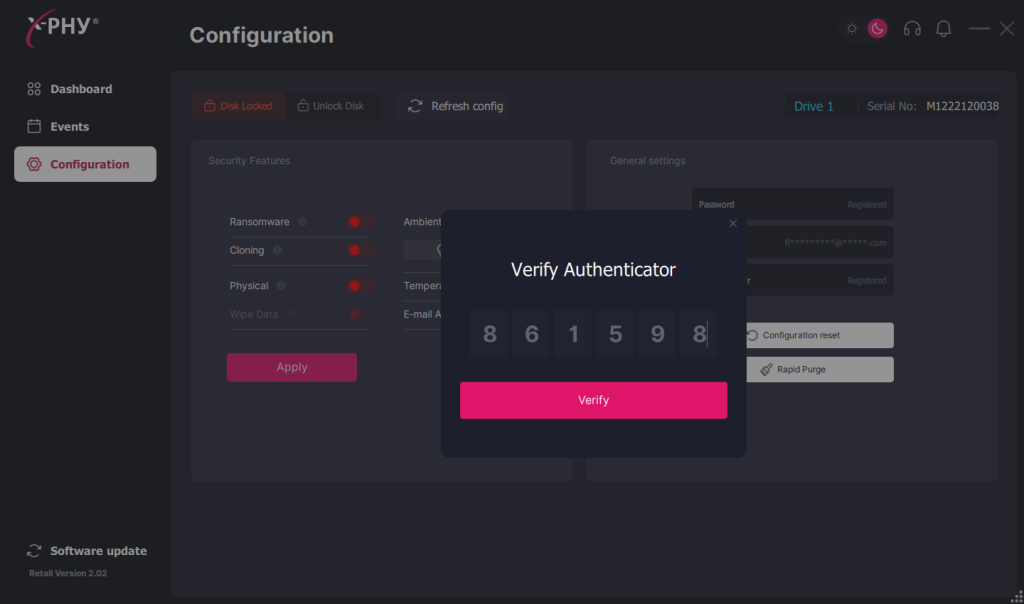
Step 5: Once authentication is verified, the SSD will be unlocked. #