
Antivirus software blocks X-PHY® PC Application #

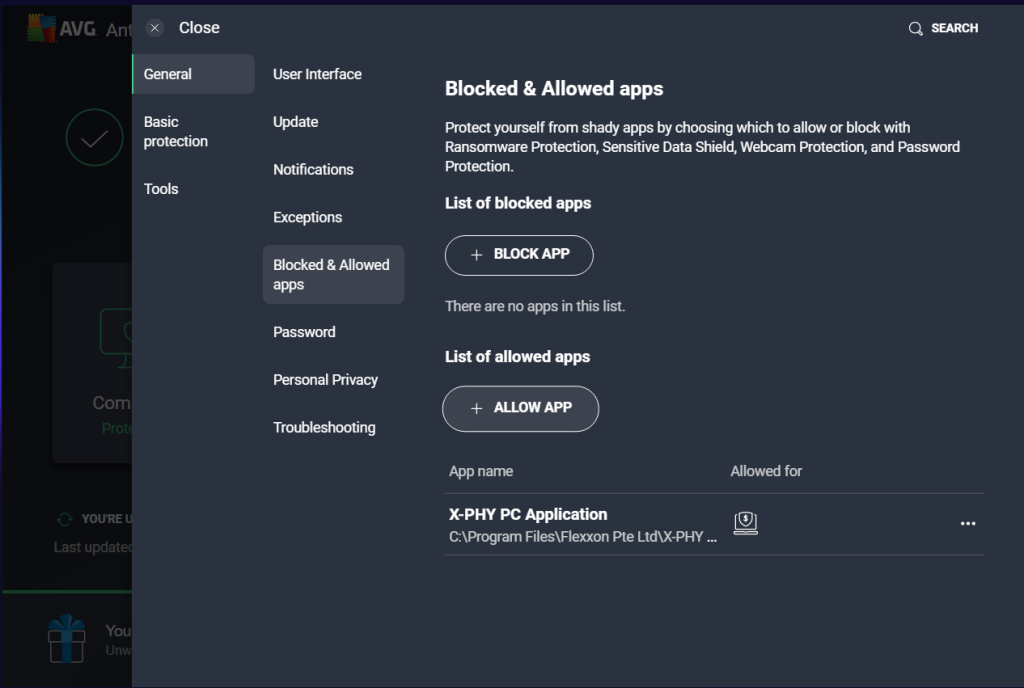
Below are links to tutorials of how to whitelist an application in common Antivirus software.
Initial Email Registration Error #

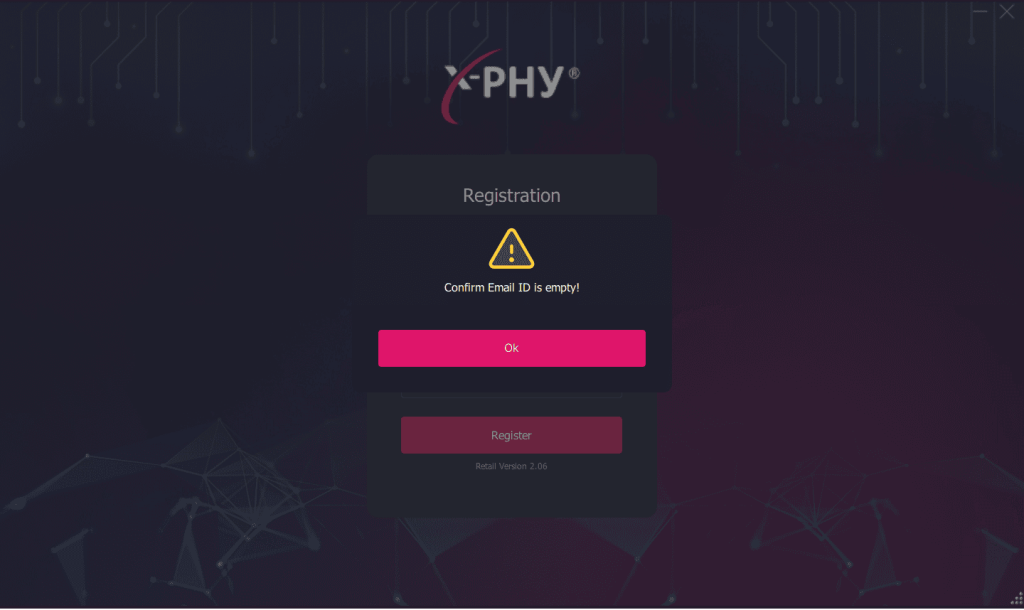
The “Confirm email ID is empty!” pop-up message will appear when the second field, “Confirm Email ID” is empty.
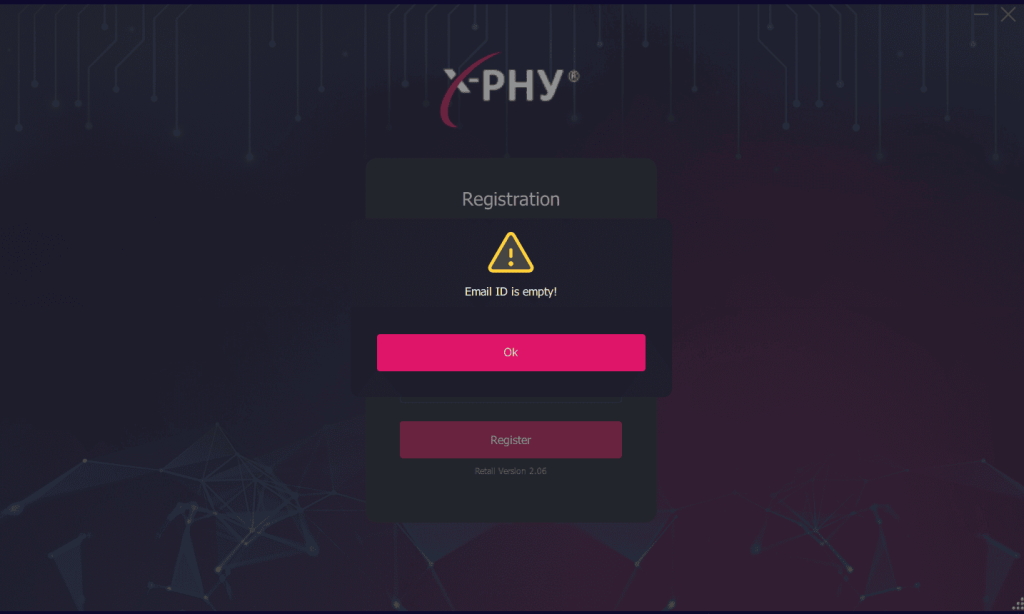
The “Email ID is empty!” pop-up message will appear if the “Current Email ID” field is empty.
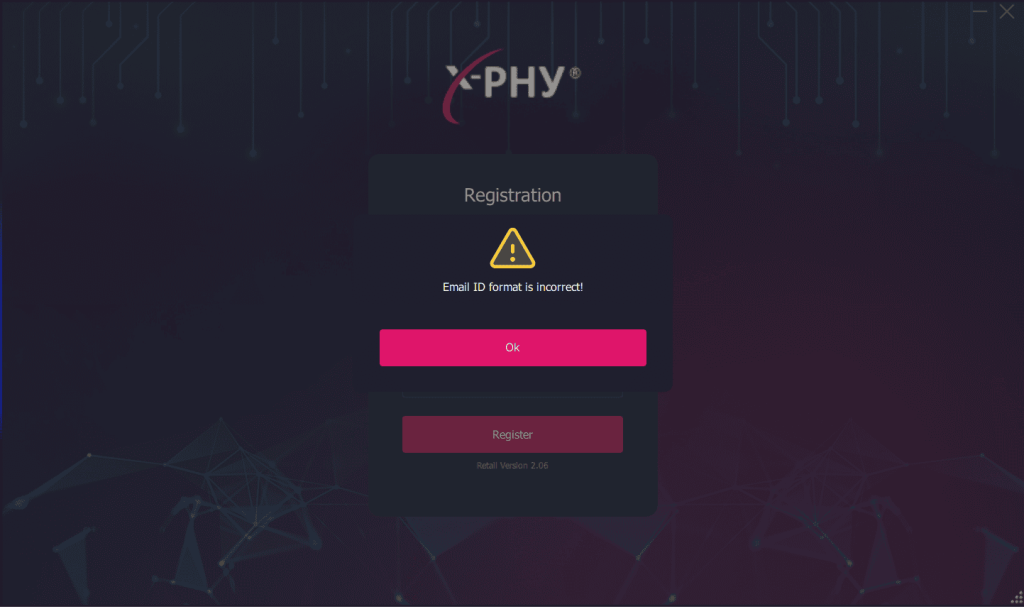
The “Email ID format is incorrect” pop-up message will appear if the user key the wrong email format in the “Email ID” field.
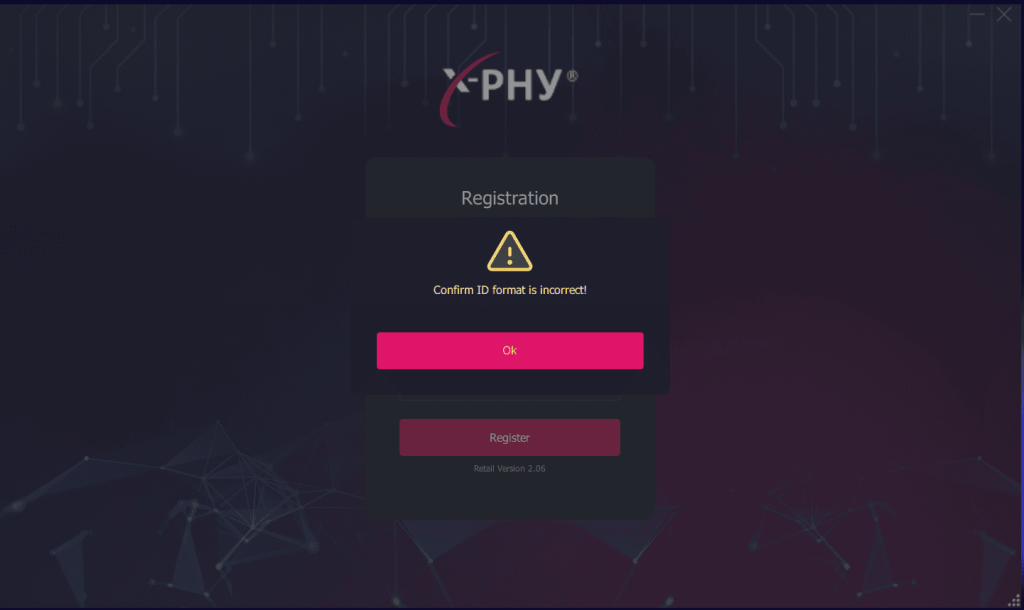
The “Confirm Email ID format is incorrect!” pop-up message will appear if the user keys the wrong email format in the “Confirm Email ID” field.
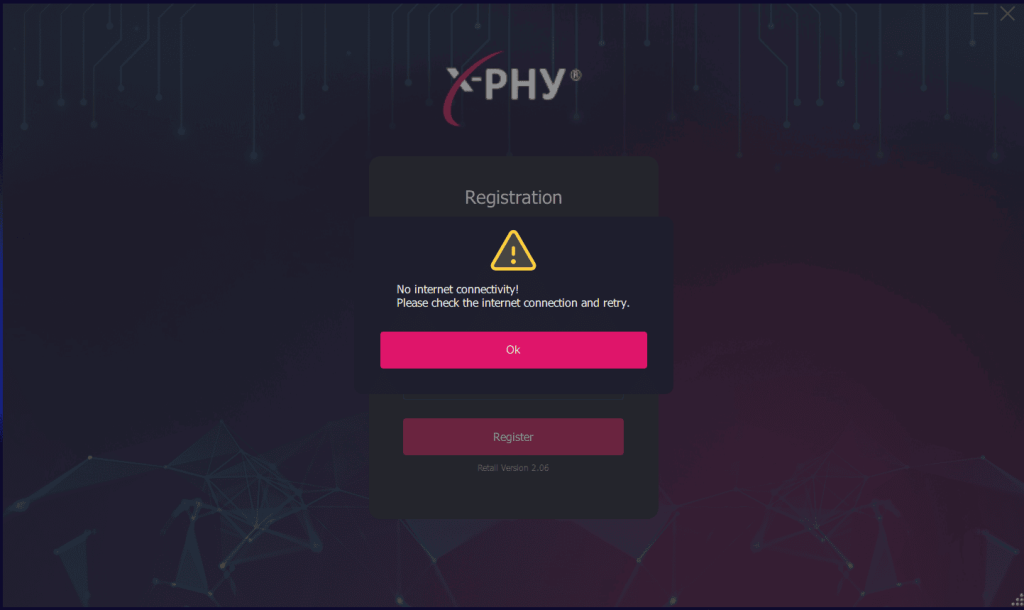
The “No internet connectivity! Please check the internet connection and retry” pop-up message will appear if the internet connection is lost after clicking the “Create” button.
Change Password Error #
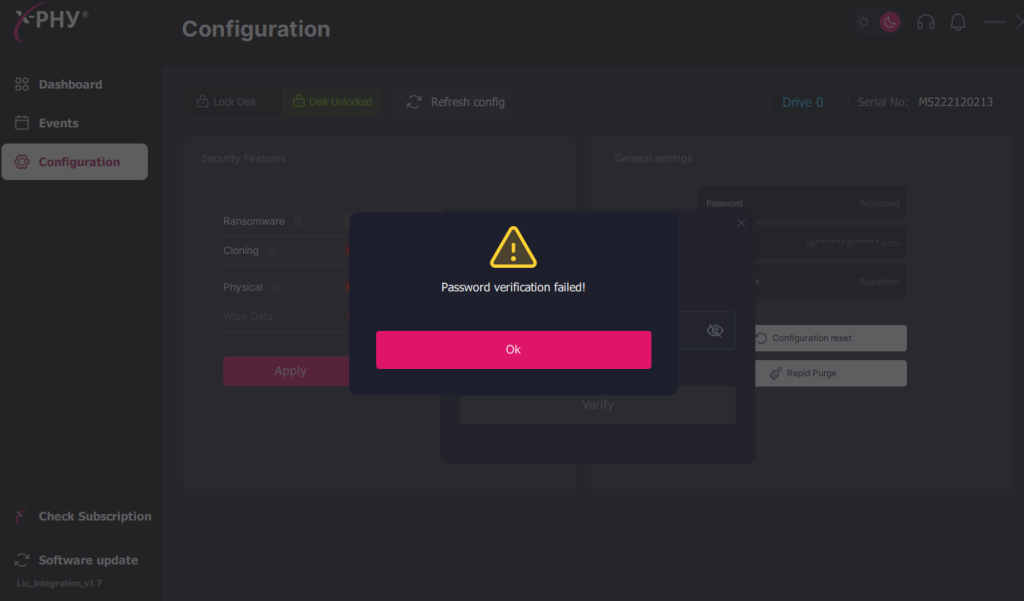
The “Password Verification Failed” pop-up message will appear if the wrong password is entered. Click “Ok” and re-enter the correct password.
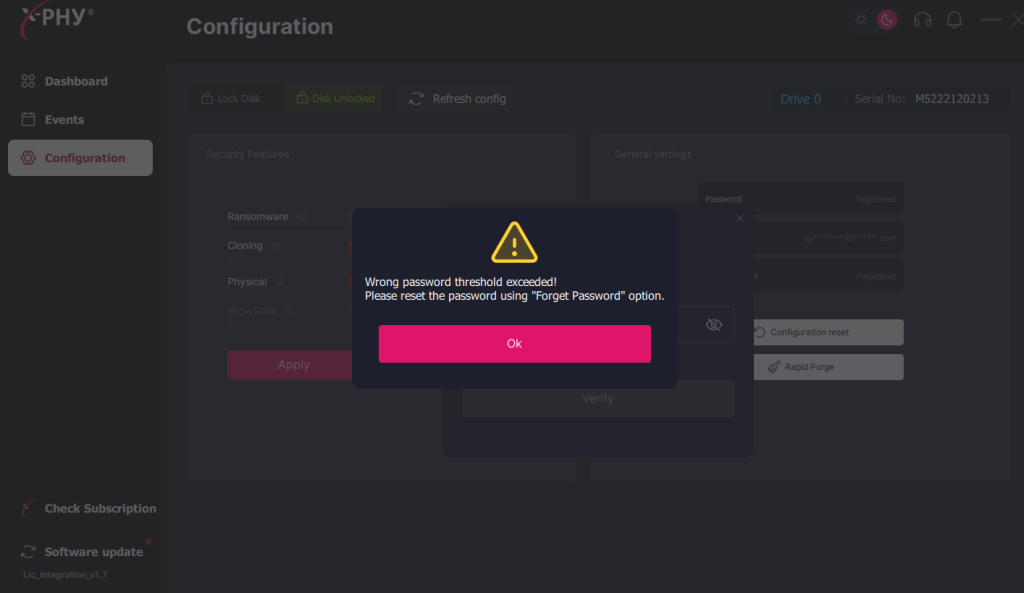
The “Wrong password threshold exceeded! Please reset the password using the ‘Forgot Password’ option.” pop-up message will appear if the wrong password is entered more than 5 times.
Forgot your Password? #
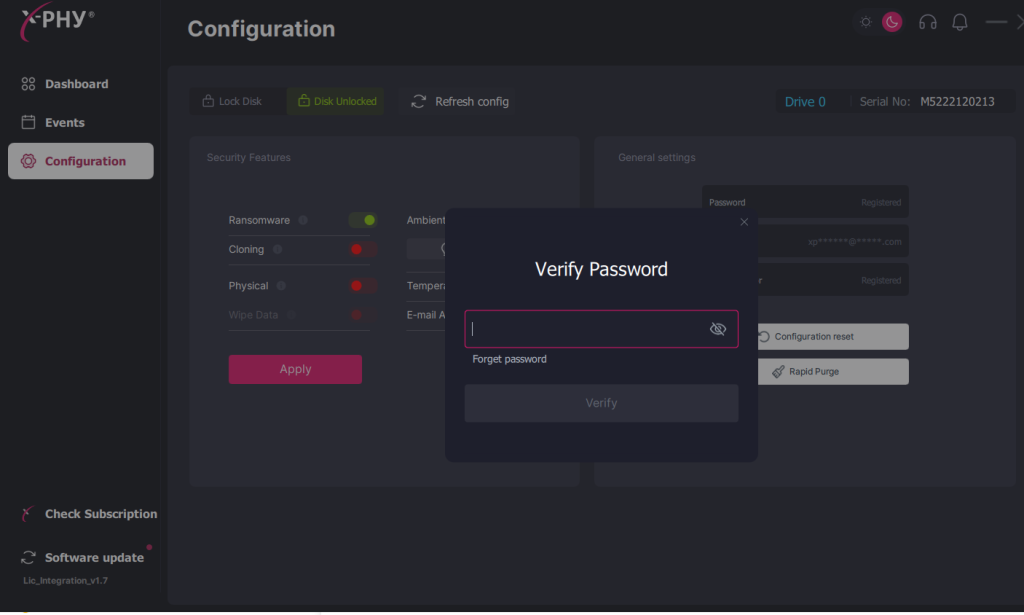
Step 1: If the password is forgotten, the “Forgot Password” button can be used to reset the password.
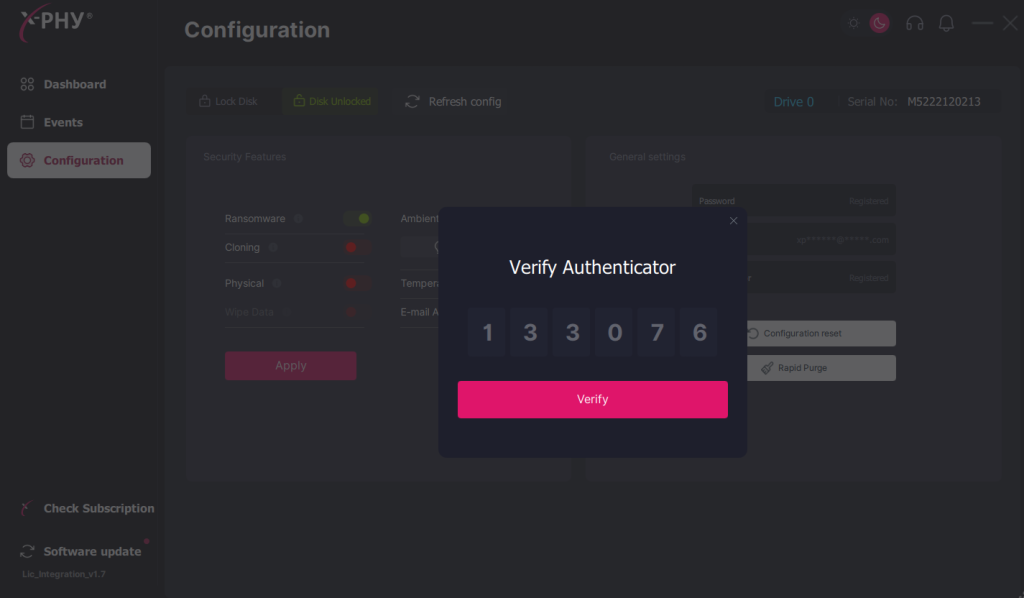
Step 2: After clicking “Forgot Password”, enter the 6 digits OTP key from your Authenticator App and click “Verify” to proceed.
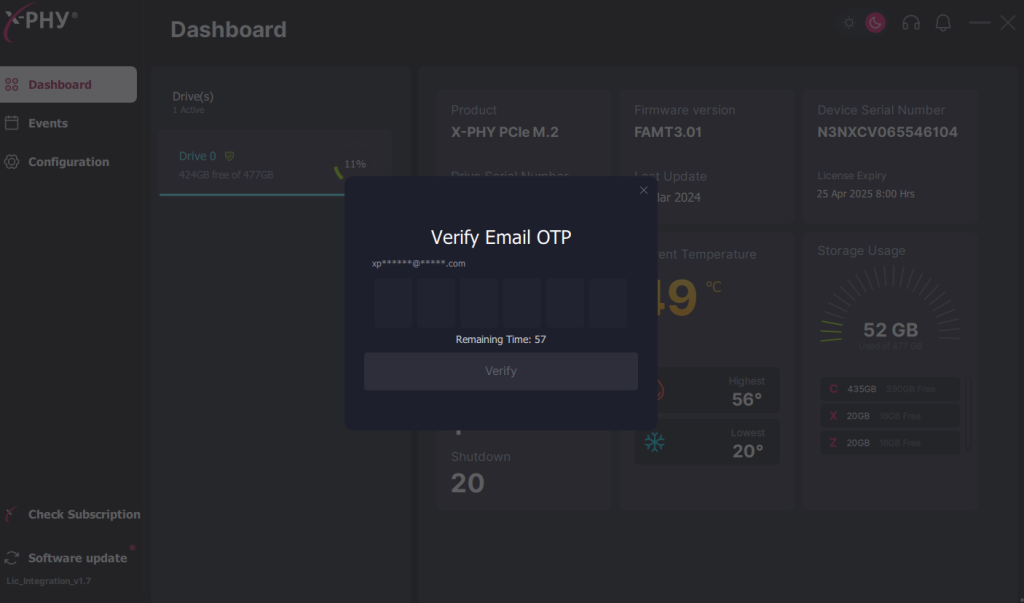
Step 3: An email OTP code will be sent to the registered email account. Enter the 6 digits Email OTP code into the “Verify Email OTP” window pop-up. Click “Verify” to proceed.
Step 4: Key in the new password into the “Password” and “Confirm password” field. Ensure that the new password adheres to the password criteria.
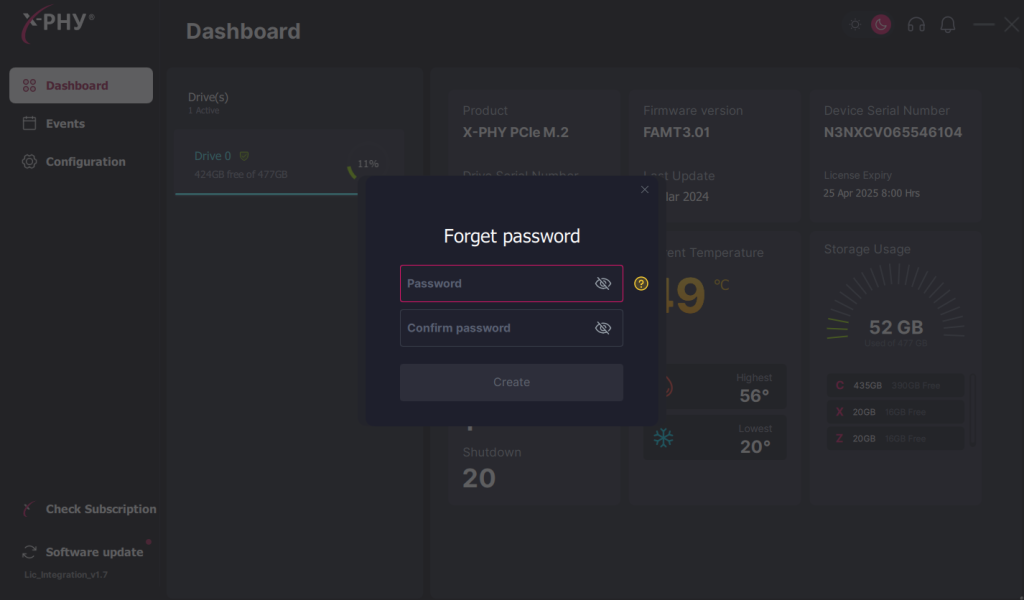
Step 5: Once the new password is successfully created, a “New password created” notification window will pop-up.
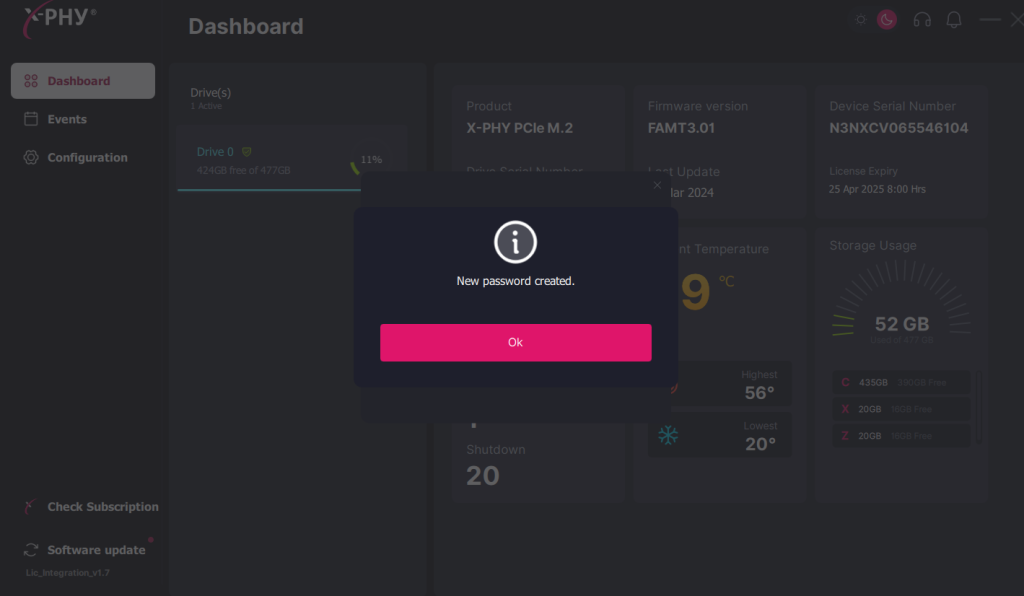
Step 6: Click “OK” to complete.
Change Email Error #
The “Email ID format is incorrect!” pop-up message will be visible if the wrong Email ID format is entered. Check that you entered a valid email address and try again.
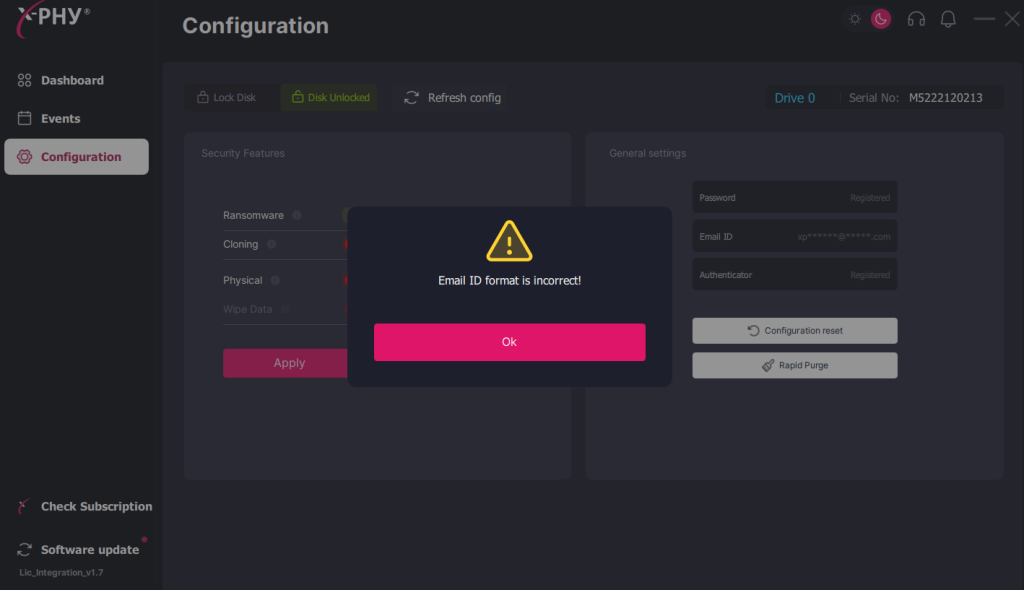
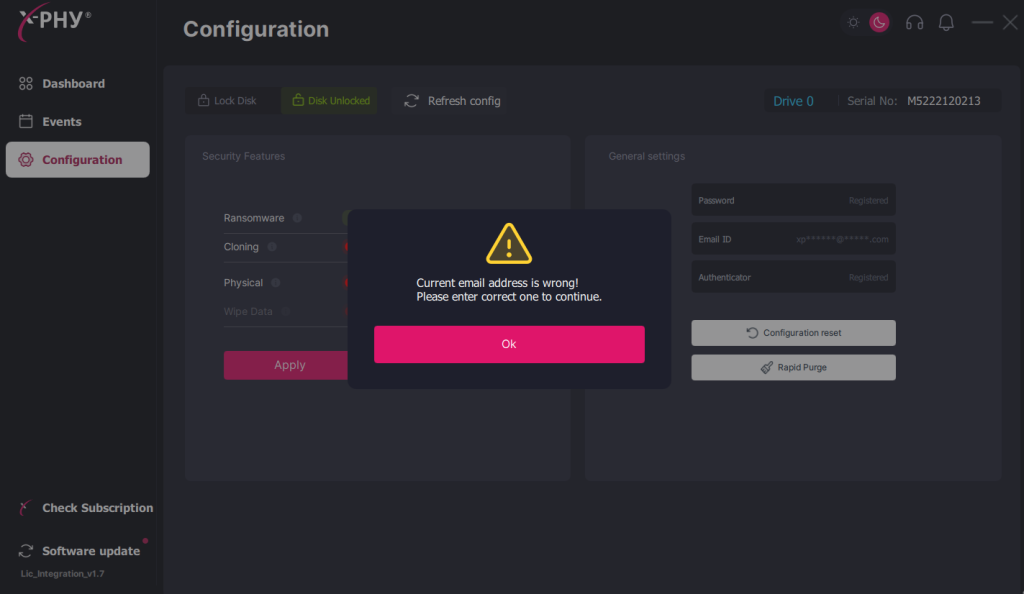
If the wrong “Current Email” address is entered then the following pop-up message will be prompted. Check that the Email address used is correct and try again.