

Table of Contents
- Step 1: Use your phone to scan the QR code to install your preferred authentication app or search on the Google Play store or iOS app store.
- Step 2: After you have installed your preferred authentication app, click on the “Next” button.
- Step 3: Open your installed Authenticator App to Register Key.
- Step 4: Click the “ +” button and select “Scan a QR code” option, use the camera to scan the QR code. Click “Next” once completed.
- Step 5: Confirmation of registration of the secret key
- Step 6: Verification of the OTP
- Step 7: Completion of the OTP registration.
- Step 8: Install the X-PHY® Connect Mobile Application.
- Step 9: Click “Next” to complete.
Note:
- Please skip this page if you have installed or have existing Google/Microsoft Authenticator.
- A smartphone is required in this section.
Step 1: Use your phone to scan the QR code to install your preferred authentication app or search on the Google Play store or iOS app store. #
Note:
- Android and iOS versions are available.
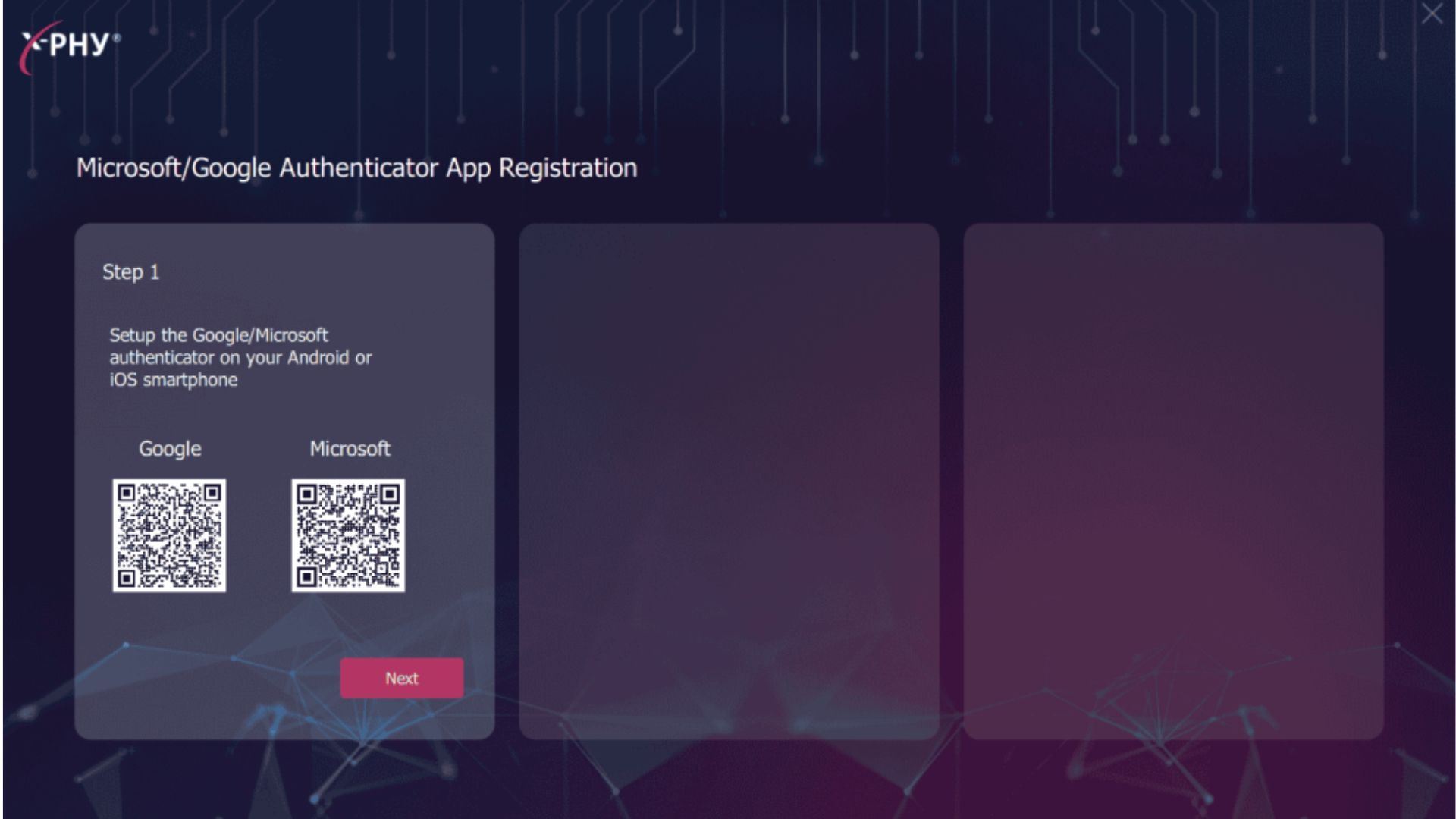 Step 2: After you have installed your preferred authentication app, click on the “Next” button. #

Disclaimer:
- Images used are for illustration purposes only, the actual app is subject to change.
Step 3: Open your installed Authenticator App to Register Key. #
Note:
- If the “Back” button is clicked on this stage, a brand new QR Register Key will be generated.
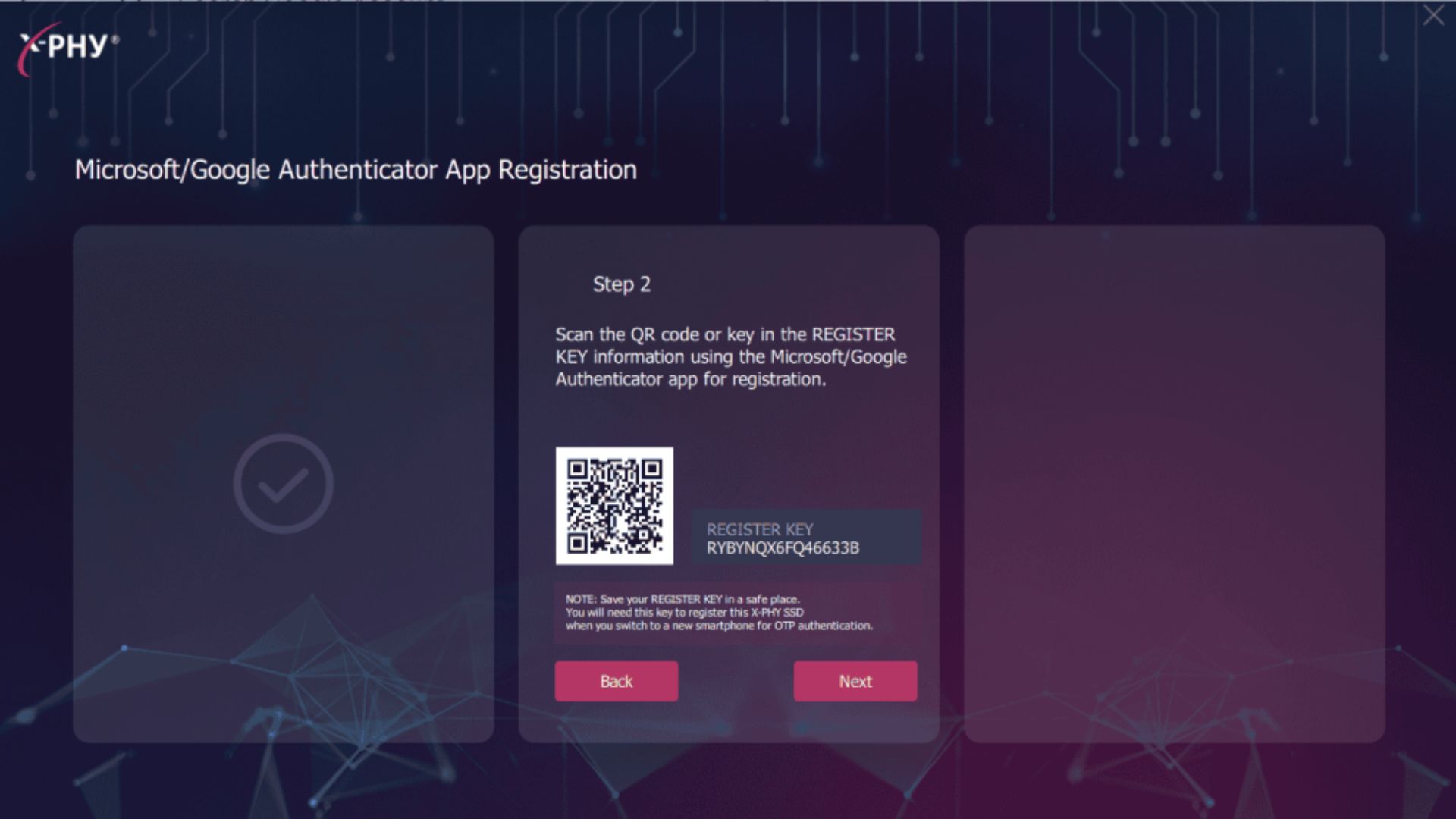
Step 4: Click the “ +” button and select “Scan a QR code” option, use the camera to scan the QR code. Click “Next” once completed. #
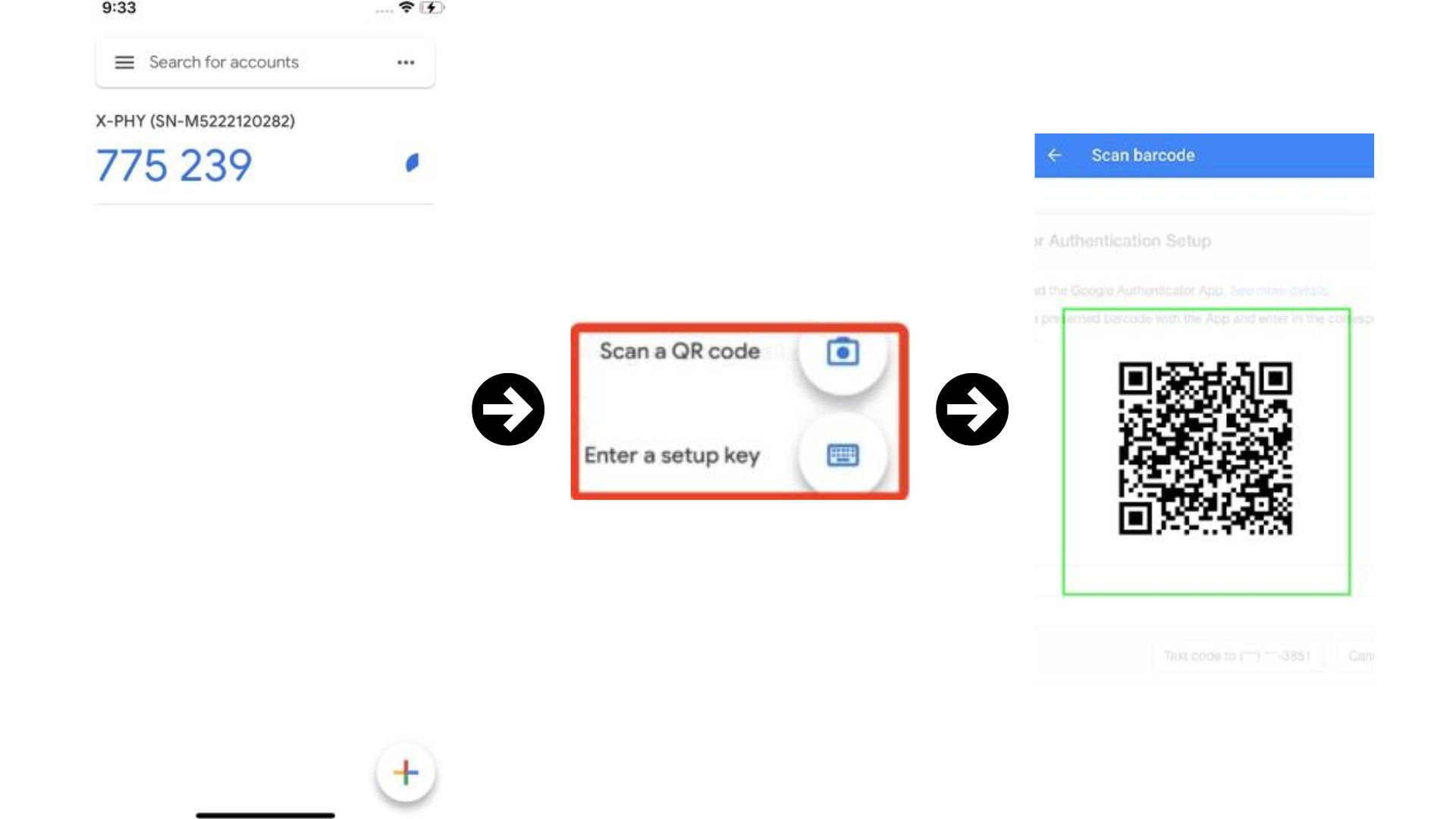
Disclaimer:
- Images used are for illustration purposes only, the actual app is subject to change.
Step 5: Confirmation of registration of the secret key #
A confirmation window prompt “Completed Your Authenticator Setup?” will pop-up. Click on “Yes” to proceed.

Note:
- If “No” is selected, refer to Step 3.
Step 6: Verification of the OTP #
Open your installed Authenticator App, enter the OTP key into the field here and click “Next”.
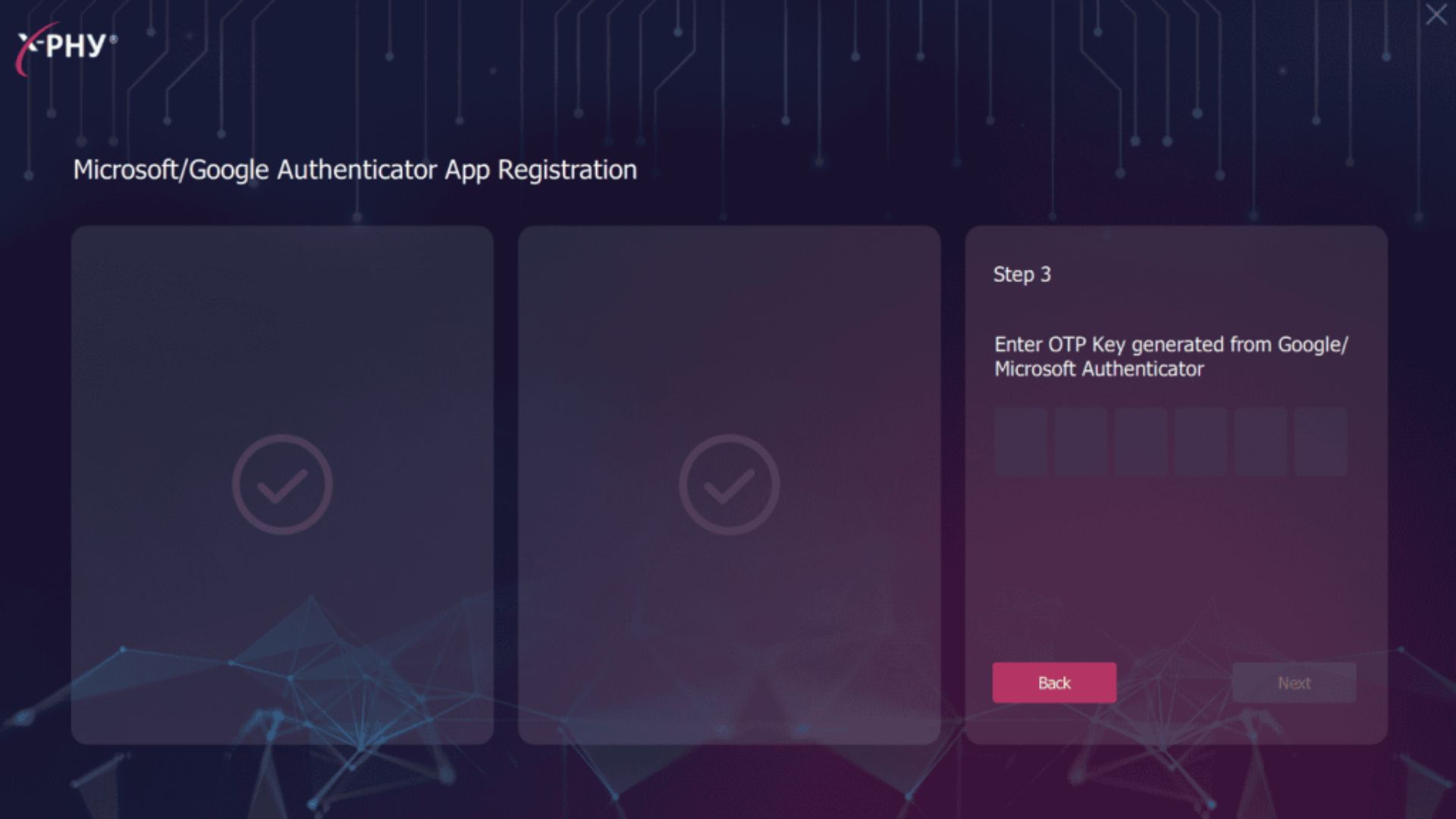
Step 7: Completion of the OTP registration. #
After Authenticator App registration is completed, a “Authenticator registration successful.” prompt will pop-up.
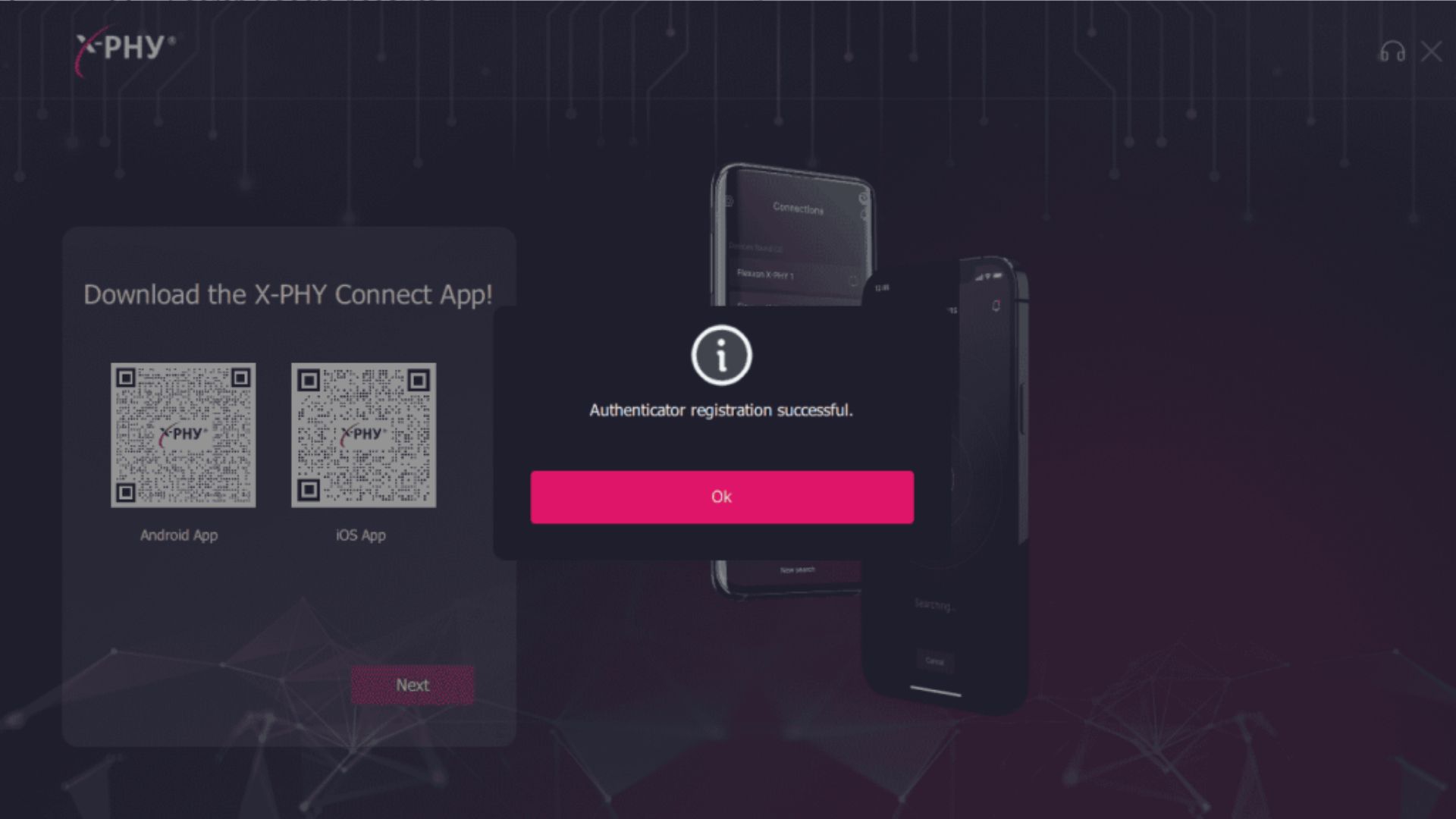
Step 8: Install the X-PHY® Connect Mobile Application. #
Use your phone to scan the QR to “Download X-PHY® Connect App”, you can also search it in your mobile app store.

Note:
- Android and iOS versions are available.